
Original
Improve clarity, contrast, and detail while keeping your image natural and ready to publish.
JPG, PNG, and WebP up to 10MB; no manual format conversion needed
How it works
File limits and estimated credit use are shown before submission, and digital results are delivered through the online workspace.
Upload the image you want to improve.
Choose automatic, clarity, tone, dehaze, color, or stretch recovery.
Compare the result and review accuracy before publishing.
Common use cases
AI output should be treated as a work result to review, not as an unquestionable source of truth.
Start with a clear, properly authorized source file and inspect the output before final publication.
Start with a clear, properly authorized source file and inspect the output before final publication.
Start with a clear, properly authorized source file and inspect the output before final publication.
Before and after
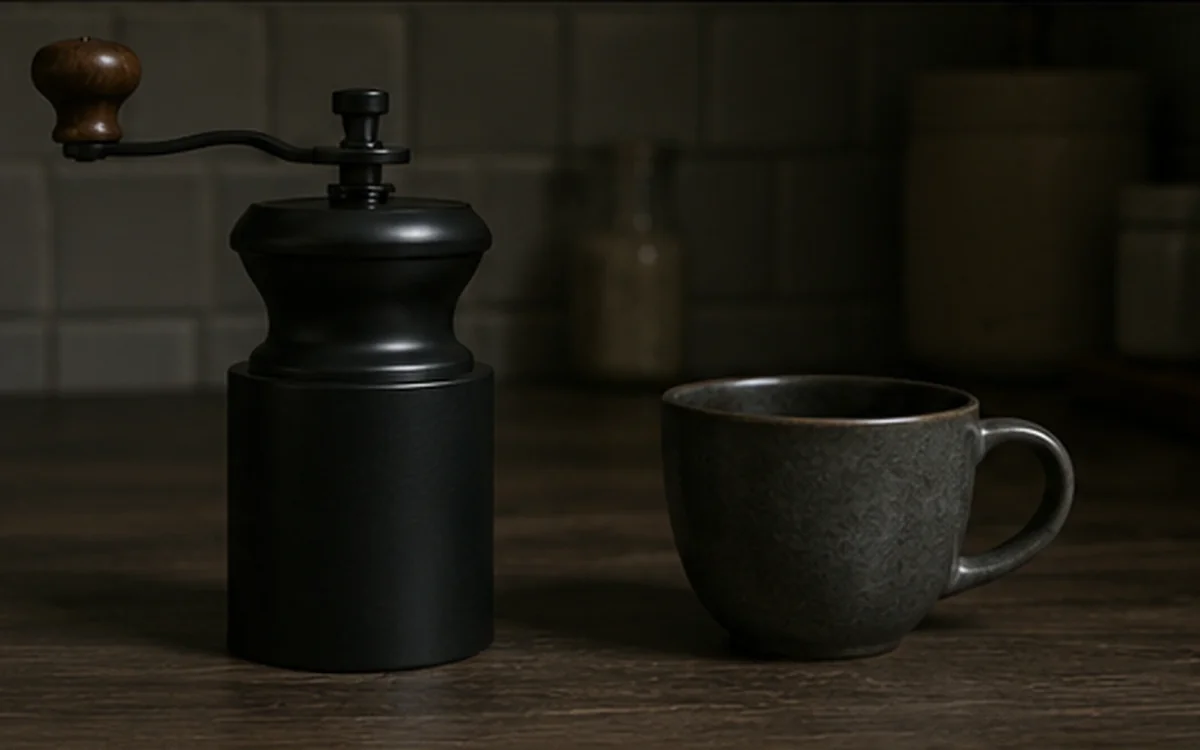
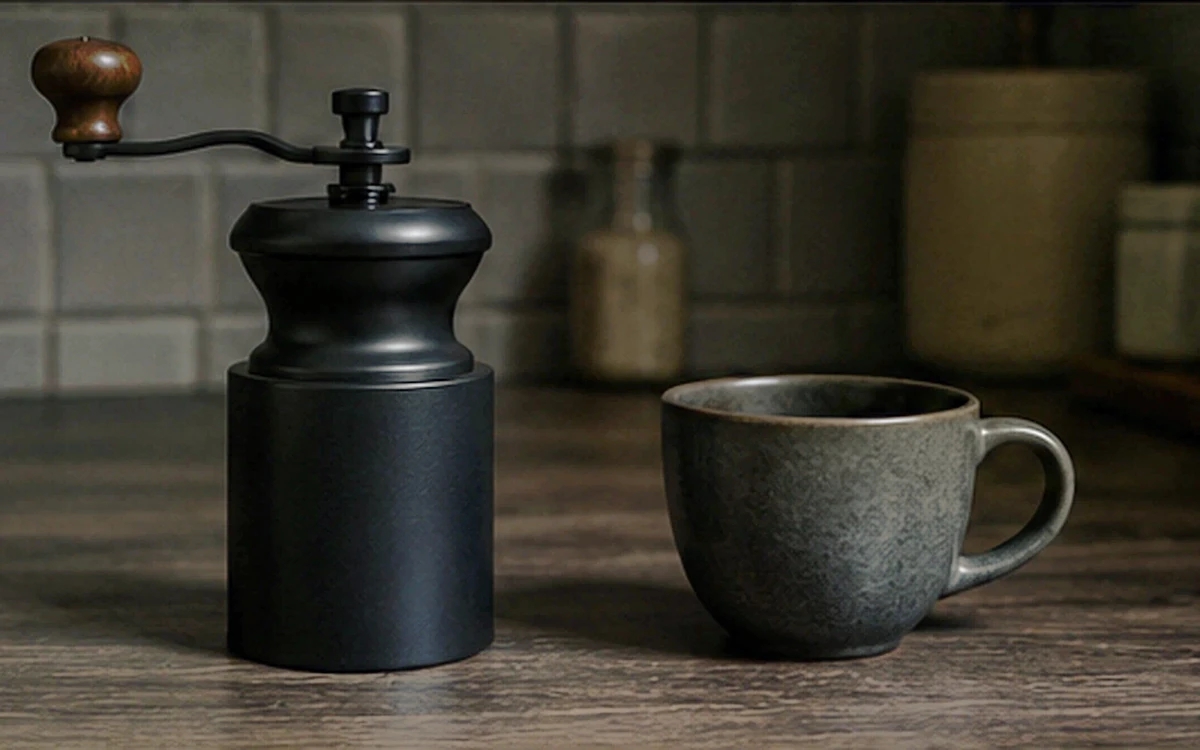
Each example pairs one source image with its matching processed result. Drag the slider and review the dimensions, suggested setting, and quality checks.
A layout for comparing exposure, tone, and overall clarity.
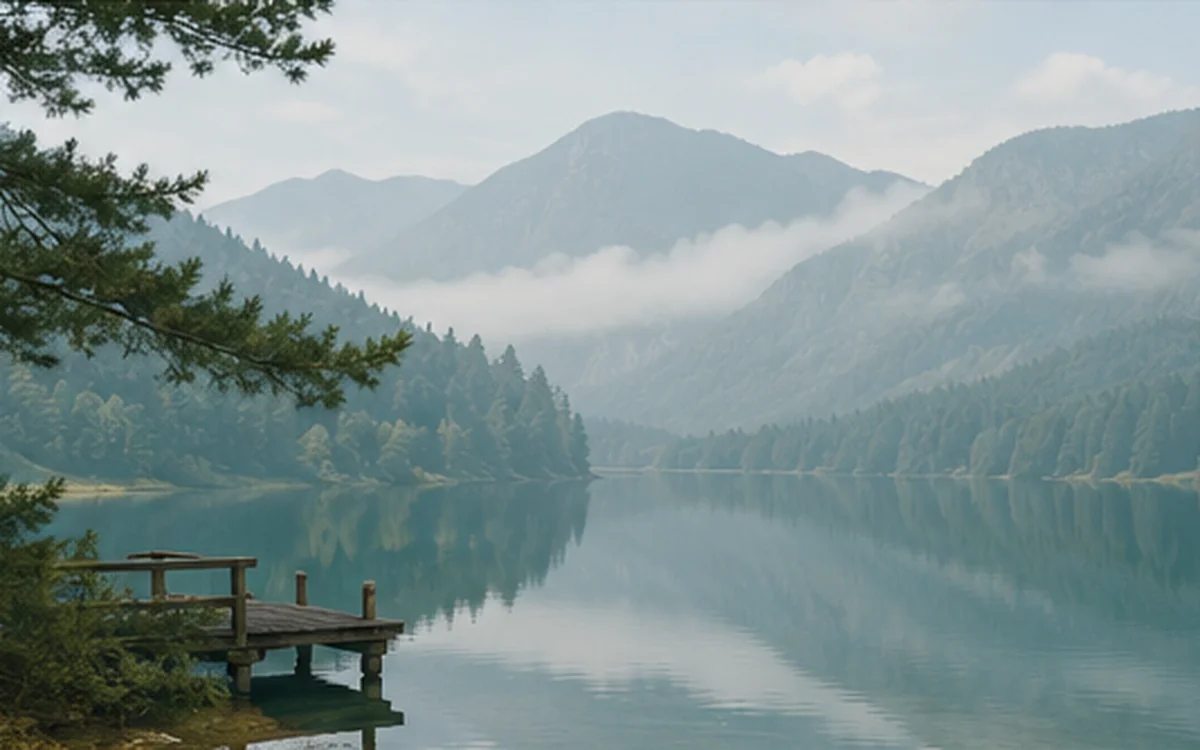
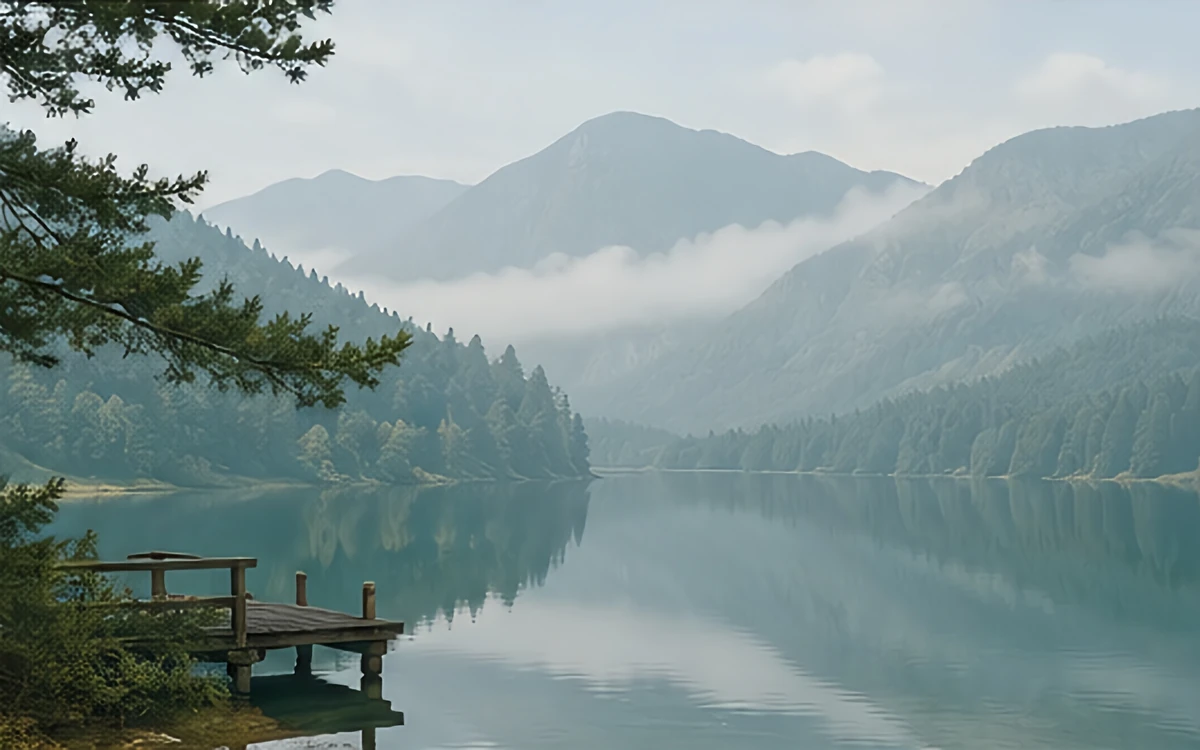
A layout for comparing dehaze, color, and local-detail changes.
Files, delivery, and privacy
JPG, PNG, and WebP files are supported up to 10MB. Job status and available results appear in the online account, and files are deleted according to the retention period stated for the plan.
Upload only images you own or have permission to process, and do not submit unlawful, infringing, or highly sensitive content.
FAQ
JPG, PNG, and WebP files are supported, up to 10MB per file.
Enhancement can alter local texture, sharpness, color, or contrast. Review results when product accuracy, documents, or exact details matter.
Start with Automatic. Use Tone for dark or flat images, Dehaze for haze, and Color for noticeable color imbalance.
Credits used by a failed job are refunded automatically.
Specific workflows
See suggested settings, matching before-and-after examples, and pre-publish checks for product, portrait, property, or illustration assets.

Use targeted enhancement to improve visibility and consistency without changing the product facts customers rely on.
View workflow
Prepare more readable property and landscape images while keeping architectural details and scene accuracy under manual review.
View workflow
Use background cleanup, targeted enhancement, and limited upscaling while protecting grain, weave, brushwork, engraving, glaze, irregular edges, and personalization.
View workflowPractical guides
Use these guides to prepare source files, choose the right operation, and review results before publishing.
A practical ecommerce image-enhancement workflow that protects product accuracy while improving clarity, contrast, color, and consistency.
Read guideReview resolution, crop, edges, color, text, artifacts, transparency, consistency, file size, naming, rights, and backups before publishing.
Read guide