
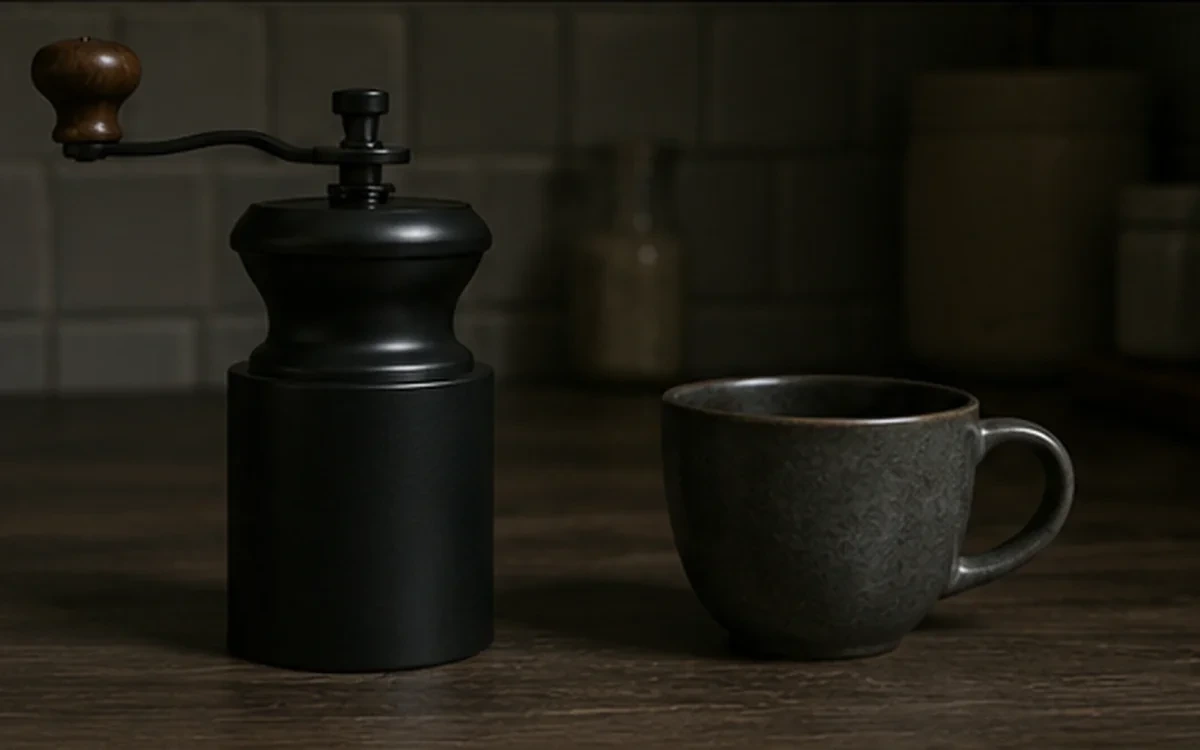
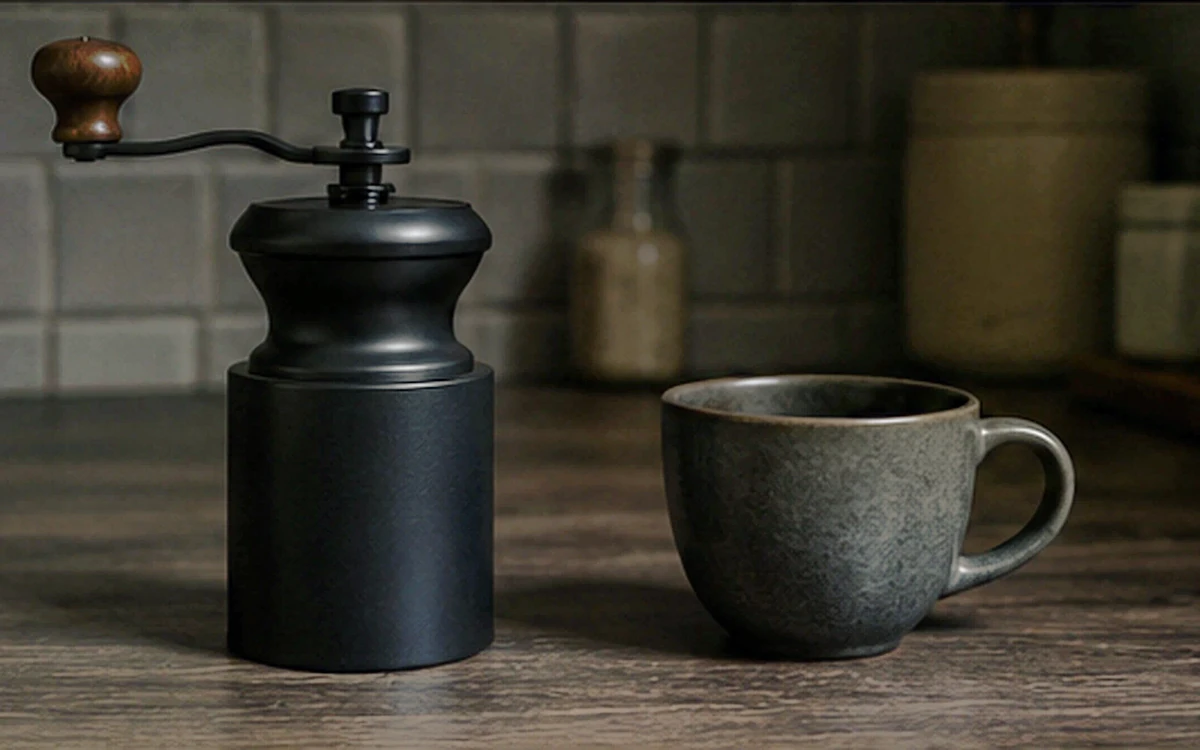
Example source dimensions
Improve dark or flat ecommerce photos before listing them.
Use targeted enhancement to improve visibility and consistency without changing the product facts customers rely on.

Example result dimensions
Problems this solves
Start with the image problem, not a generic AI setting.
- Dark product photos and weak contrast
- Inconsistent catalog appearance
- Details that are difficult to inspect on smaller screens
Workflow
Complete and review the result in four steps.
- 1
Upload the original product photo and keep it available for comparison.
- 2
Start with Automatic or Tone & contrast instead of applying every mode.
- 3
Compare color, material texture, labels, and reflections with the source.
- 4
Export only after the image still represents the real product.
Pre-publish review
Do not judge only from a thumbnail.
Product color remains accurate
Check again at 100% zoom and in the final placement or background.
Texture is clearer without looking artificial
Check again at 100% zoom and in the final placement or background.
Text and labels have not changed
Check again at 100% zoom and in the final placement or background.
Highlights and shadows retain usable detail
Check again at 100% zoom and in the final placement or background.
FAQ
Common questions for this workflow
Can enhancement make a product look different?
Yes. Strong enhancement can change texture, color, or local detail, so compare the result with the source.
Which mode should I try first?
Automatic is the safest starting point. Use Tone for dark images and Color only for a clear color imbalance.
Should all catalog images use the same setting?
Use a consistent workflow, but review each source because lighting and product materials differ.
Practical guides
Get more reliable results with a better workflow.
Use these guides to prepare source files, choose the right operation, and review results before publishing.
Ecommerce Image Enhancement Without Misleading Buyers
A practical ecommerce image-enhancement workflow that protects product accuracy while improving clarity, contrast, color, and consistency.
Read guideHow to upscale small product images without making them look fake
Learn when to use 2× or 4× AI upscaling for small ecommerce images, what details to inspect, and how to avoid artificial-looking product results.
Read guideMake a Logo Background Transparent Safely
Remove a logo background, preserve sharp edges and interior spaces, and export a reusable transparent PNG for websites and documents.
Read guideVerify the workflow with your own image.
Guests can process one image free without an account. Sign in to continue, keep history, and manage credits.