ImageAI brings three common image tasks into one browser workspace: background removal, image enhancement, and image upscaling. The tools share the same account, credit balance, job history, file rules, and digital delivery process.
This guide explains when each workflow is useful, what to check before submitting a file, and how to review the result before publishing it.
Workflow 1: remove a product or subject background
Background removal is useful when you need a transparent PNG for a product card, catalog layout, profile image, presentation, or marketing design.
Start with a source image where the subject is reasonably separated from the background. Strong contrast usually makes the boundary easier to identify. Before uploading, check for cropped hair, motion blur, transparent objects, shadows, reflections, and areas where the subject and background have similar colors.
A practical workflow is:
- Upload a supported JPG, PNG, or WebP file.
- Confirm the displayed file limit and estimated credit cost.
- Submit the background-removal job.
- Open the result at full size and inspect hair, fur, product edges, gaps, shadows, and semi-transparent areas.
- Download the transparent PNG while it remains available in the workspace.
For ecommerce use, place the result over both a light and a dark temporary background. This makes leftover halos and missing edge pixels easier to see.
Workflow 2: enhance a dark, flat, or mildly soft image
Image enhancement can improve the usability of an existing photo without requiring a new shoot. It is most useful for images that are slightly dark, low in contrast, hazy, muted in color, or mildly soft.
Choose the least aggressive mode that addresses the actual problem. Automatic mode is a sensible starting point when you are unsure. Tone or contrast adjustments can help flat images, dehaze can help visible haze, and color enhancement can help a clear color imbalance. Stronger processing is not always better.
After processing, compare the result with the source. Check whether:
- product colors still match reality;
- skin tones remain plausible;
- logos and text remain accurate;
- texture has not become crunchy or artificial;
- highlights and shadows still contain useful detail;
- the image still fits the intended marketplace or brand style.
For a product listing, visual attractiveness should never replace factual accuracy. If the enhanced result changes what the product appears to be, use a lighter setting or keep the original.
Workflow 3: upscale an image by 2× or 4×
Upscaling creates a larger output by estimating additional pixels. A 2× upscale doubles both width and height. A 4× upscale multiplies both dimensions by four, which produces sixteen times as many total pixels as the original.
Use 2× when the original is already reasonably clear and you need a moderate size increase. Use 4× when the intended output genuinely requires much larger dimensions and you have checked that the source can support stronger reconstruction.
Before submitting, review the estimated output dimensions and credit cost. Large outputs require more processing resources and can make artifacts more visible. After processing, inspect faces, fingers, small text, straight lines, product labels, repeated patterns, and fine edges. AI upscaling cannot reliably recover real detail that was never captured; it estimates a plausible result.
One account and one delivery process
Across all three workflows, the operating pattern is consistent:
- supported file types and the current upload limit are shown before submission;
- estimated credits are displayed before the job is created;
- processing status appears in the online account;
- eligible failed jobs return the related credits automatically;
- available results are delivered through the workspace;
- files should be downloaded before the published retention period ends.
The service is digital only. No physical item is shipped, and ImageAI is not a manual design service. The customer controls the source file, selects the operation, reviews the result, and decides whether it is suitable for final use.
A final review checklist
Before publishing any processed image, confirm that:
- you own the source or have permission to process it;
- the subject, product, text, and branding remain accurate;
- the output dimensions and format match the destination;
- transparency, edges, color, and sharpness look correct at full size;
- no sensitive or unintended information is visible;
- you downloaded the result before its retention deadline.
For pricing, file delivery, refund, cancellation, and privacy details, use the public policy links on the ImageAI product and pricing pages.
Published example evidence
The images below are the currently published source file and its corresponding ImageAI result. They document this example and current tool output; they are not a guarantee that every image will produce the same result. Published dimensions: 1200 × 750.
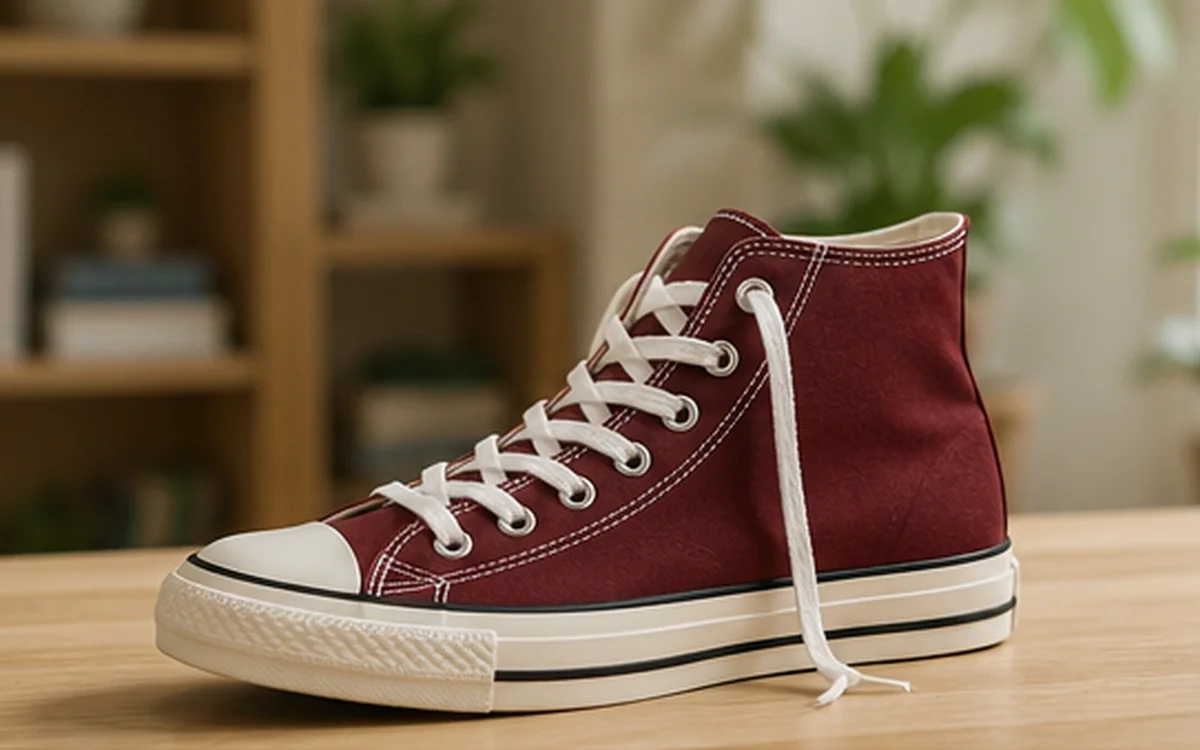
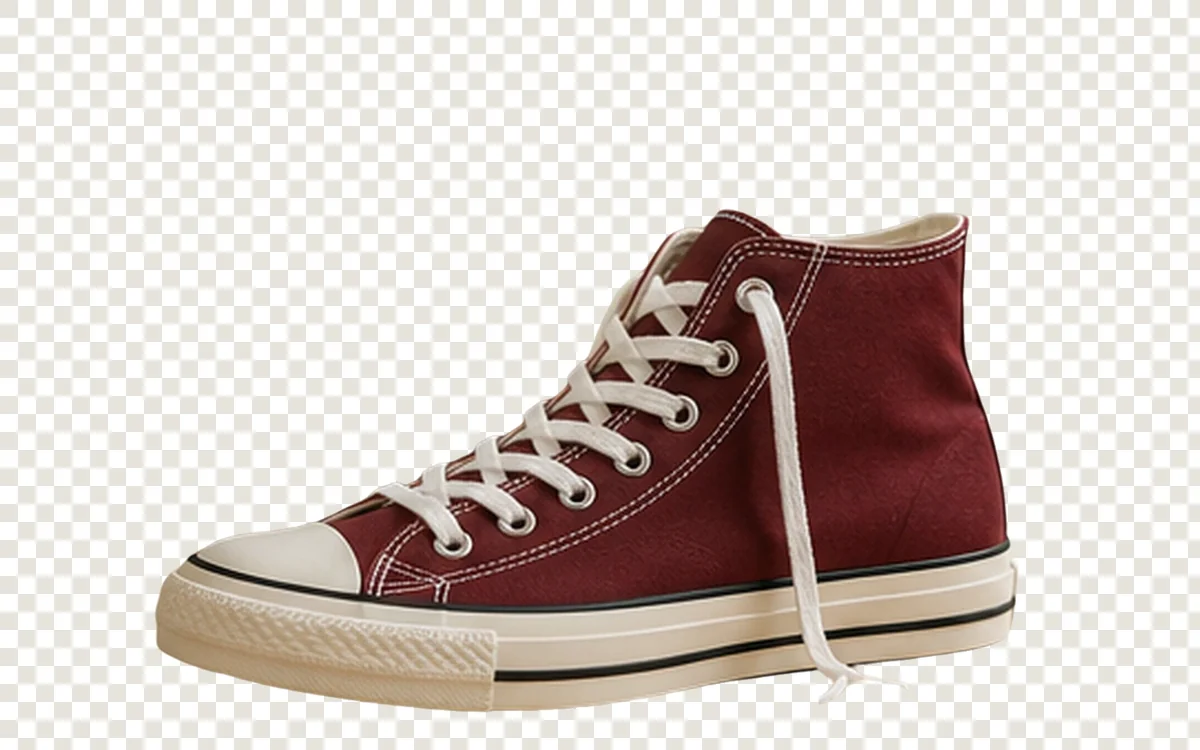
When reviewing your own result, inspect edges, text, texture, color, and transparency instead of judging only from a thumbnail.