
Example source dimensions
Portrait workflow
Separate portraits while preserving hair and clothing edges.
Prepare profile images, presentation assets, and campaign portraits with a transparent background while keeping hair and fine edges under review.
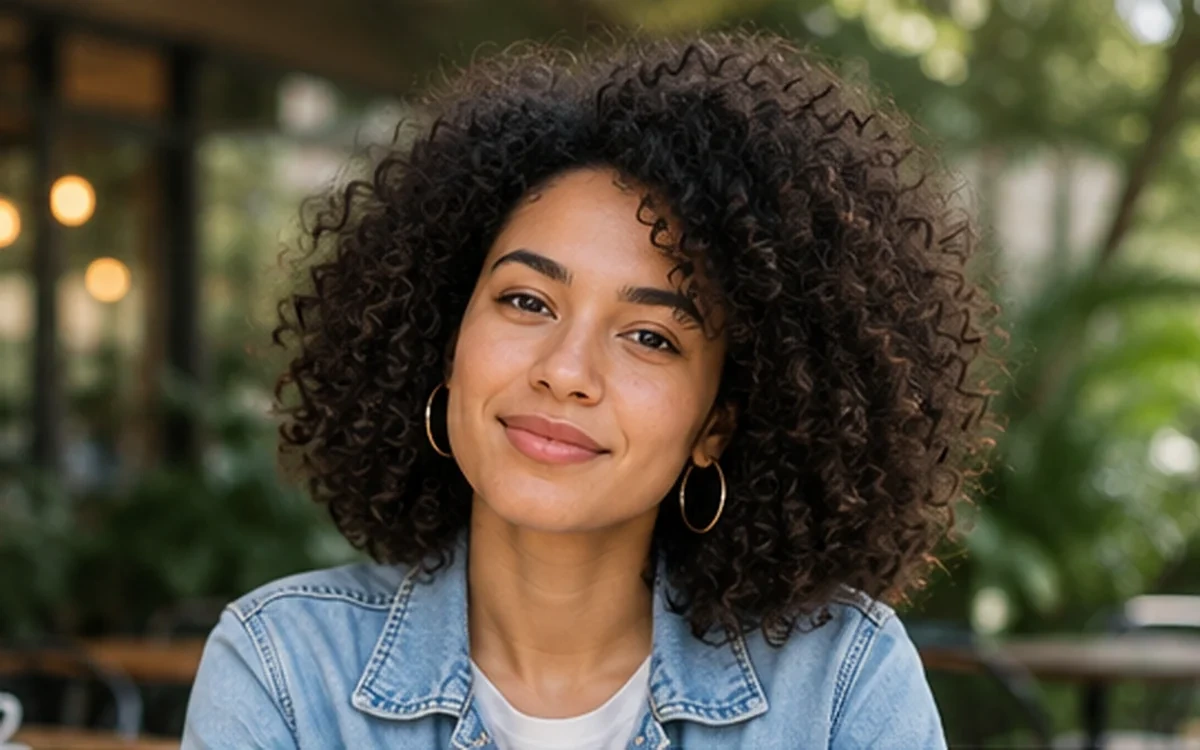
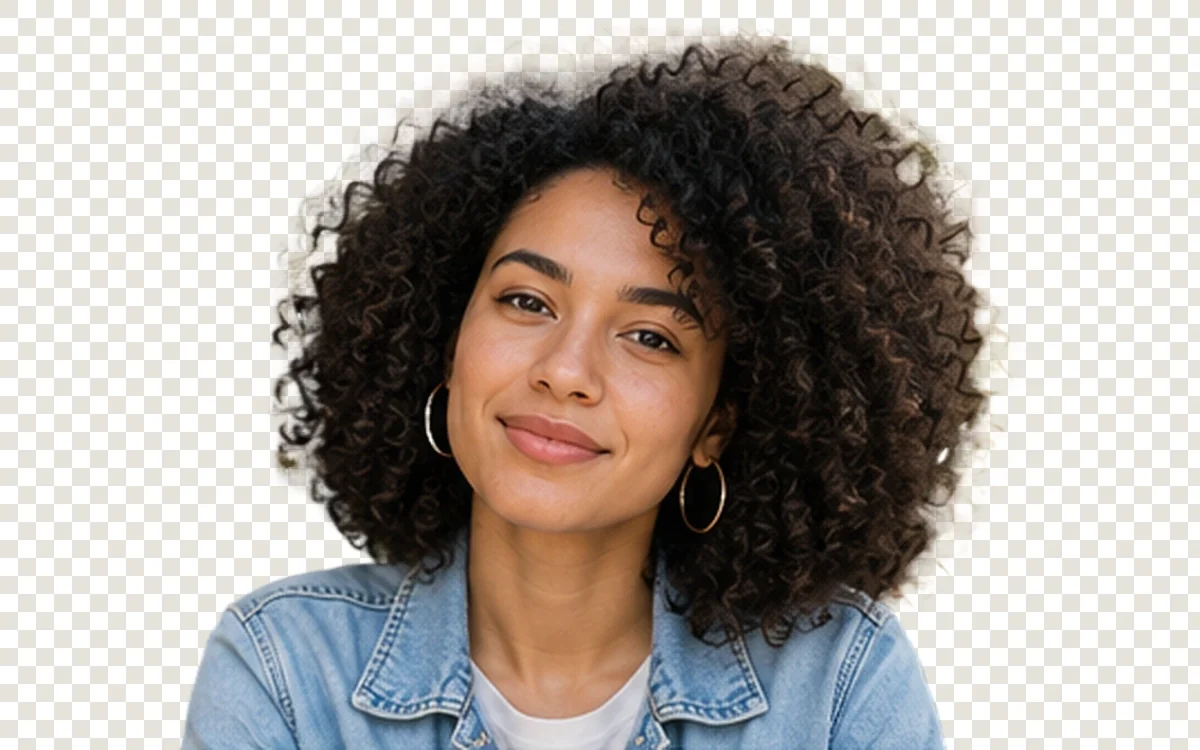
Example result dimensions
Problems this solves
Start with the image problem, not a generic AI setting.
- Distracting portrait backgrounds
- Hair, curls, earrings, and fine clothing edges
- Reusable profile and campaign assets
Workflow
Complete and review the result in four steps.
- 1
Upload a well-lit portrait with visible separation from the background.
- 2
Choose Portrait & hair for difficult curls or fine edges.
- 3
Inspect hair, ears, jewelry, shoulders, and semi-transparent areas.
- 4
Download the PNG and test it on both light and dark backgrounds.
Pre-publish review
Do not judge only from a thumbnail.
Hair silhouette remains natural
Check again at 100% zoom and in the final placement or background.
No background color fringe around shoulders
Check again at 100% zoom and in the final placement or background.
Face and clothing are unchanged
Check again at 100% zoom and in the final placement or background.
The cutout works on contrasting backgrounds
Check again at 100% zoom and in the final placement or background.
FAQ
Common questions for this workflow
Can every strand of hair be preserved?
Not always. Fine hair and low-contrast backgrounds need close review and sometimes a better source photo.
Can I use the result for an ID document?
Use official document requirements and manual review. AI processing can alter edges and may not be accepted by the issuing authority.
Why test on light and dark backgrounds?
A halo that is hard to see on one background can become obvious on another.
Practical guides
Get more reliable results with a better workflow.
Use these guides to prepare source files, choose the right operation, and review results before publishing.
How to clean up a profile picture for websites and social media
Prepare a clear profile image with safe cropping, restrained enhancement, simple background treatment, and multi-size exports.
Read guideHow to upscale small product images without making them look fake
Learn when to use 2× or 4× AI upscaling for small ecommerce images, what details to inspect, and how to avoid artificial-looking product results.
Read guideMake a Logo Background Transparent Safely
Remove a logo background, preserve sharp edges and interior spaces, and export a reusable transparent PNG for websites and documents.
Read guide
ImageAI
Open ImageAI
Verify the workflow with your own image.
Guests can process one image free without an account. Sign in to continue, keep history, and manage credits.