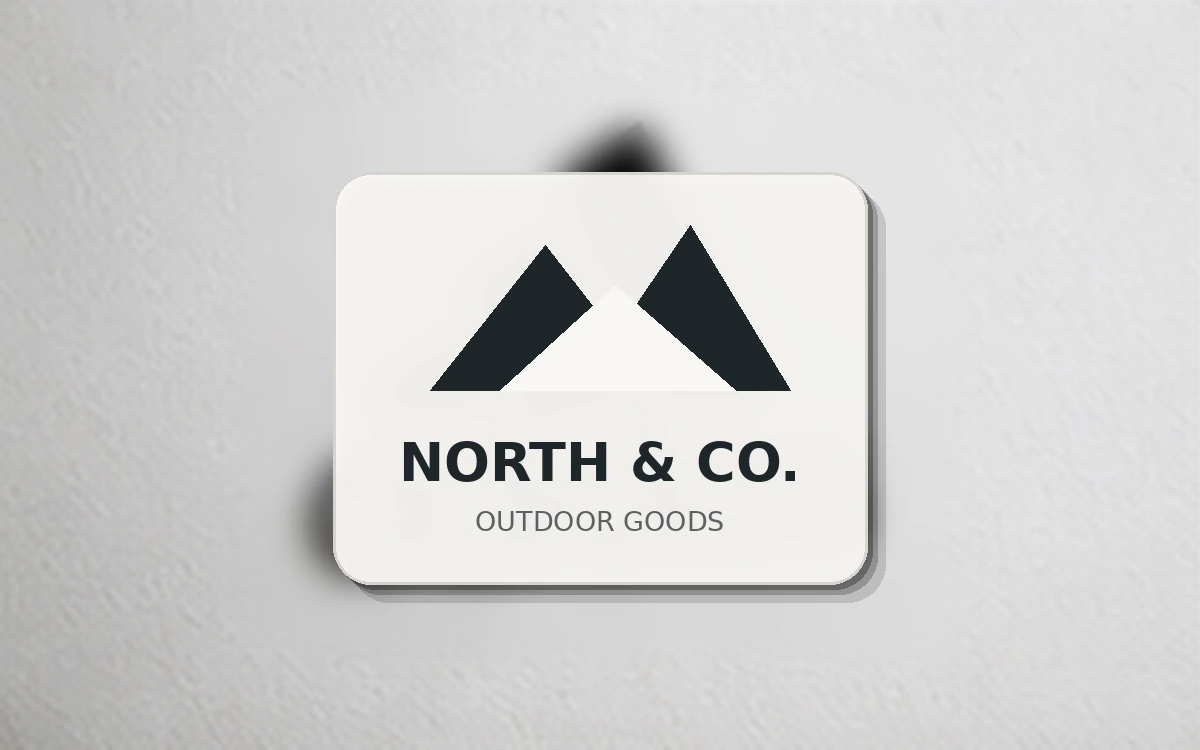
Example source dimensions
Make a raster logo background transparent without removing brand details.
Recover a reusable transparent PNG when the original vector or transparent brand file is unavailable, then verify thin strokes, interior holes, white artwork, and edge color.

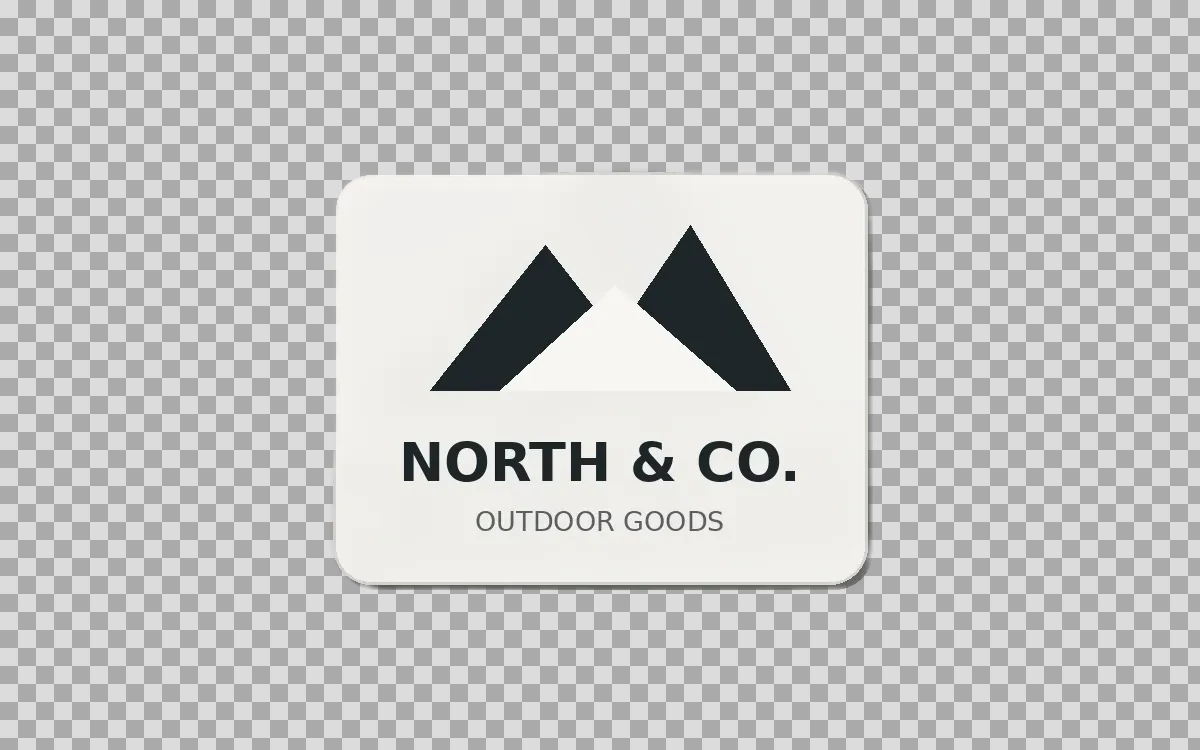
Example result dimensions
Problems this solves
Start with the image problem, not a generic AI setting.
- A logo supplied only as a JPG or screenshot
- White artwork that may be confused with background
- Thin strokes, interior holes, and anti-aliased edges
Workflow
Complete and review the result in four steps.
- 1
Use the original vector or transparent file when available.
- 2
Upload the cleanest, largest raster copy without interface chrome.
- 3
Remove the background and inspect letters, symbols, and one-pixel lines.
- 4
Test the PNG over white, black, and a saturated brand color.
Pre-publish review
Do not judge only from a thumbnail.
Official brand colors remain unchanged
Check again at 100% zoom and in the final placement or background.
Interior holes remain transparent
Check again at 100% zoom and in the final placement or background.
White artwork is still present
Check again at 100% zoom and in the final placement or background.
No light or dark matte fringe
Check again at 100% zoom and in the final placement or background.
FAQ
Common questions for this workflow
Should I use this instead of an SVG?
No. Use the original vector asset when it exists; background removal is a recovery workflow for raster files.
Why test several backgrounds?
An edge fringe or missing white shape can be invisible on only one background.
Can I publish any logo I process?
Only process and publish logos you are authorized to use.
Practical guides
Get more reliable results with a better workflow.
Use these guides to prepare source files, choose the right operation, and review results before publishing.
Make a Logo Background Transparent Safely
Remove a logo background, preserve sharp edges and interior spaces, and export a reusable transparent PNG for websites and documents.
Read guideHow to upscale small product images without making them look fake
Learn when to use 2× or 4× AI upscaling for small ecommerce images, what details to inspect, and how to avoid artificial-looking product results.
Read guideAmazon product image preparation: a safe editing checklist
Prepare Amazon-ready product images with a clean main image, accurate details, consistent secondary views, and a documented quality review.
Read guideVerify the workflow with your own image.
Guests can process one image free without an account. Sign in to continue, keep history, and manage credits.